# Webhooks
# Overview
Webhooks are notifications about events occurring in the system. When a specific event occurs, Xsolla sends an HTTP request, in which event data is transmitted, to your application. This is usually a POST request in JSON format.
Event examples:
- user interaction with an item catalog
- payment or cancellation of an order
When a set event happens, Xsolla notifies your system about it via a webhook. As a result, you can perform actions such as:
- replenish the user's balance
- make a payment refund
- credit or debit new items from the user account
- start providing a subscription
- block a user in case of a suspicion of fraud
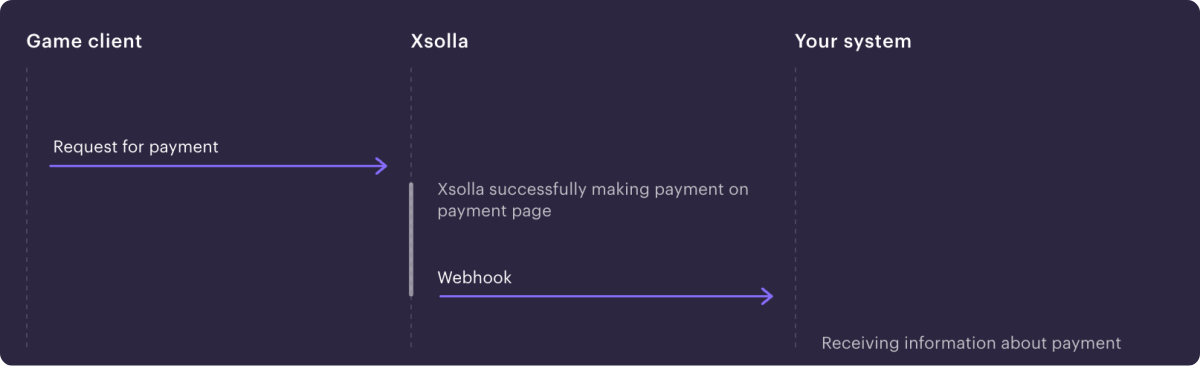
Example of a payment processing webhook workflow:
Note
Depending on the solution used and the type of its integration, the set of webhooks and sequence of interactions may differ from the provided example.
Video guide for Xsolla webhooks integration:
Webhooks settings when working with Xsolla products and solutions:
| Product/ Solution |
Required/ Optional |
What are webhooks used for |
| Payments |
Required |
- User validation.
- Receiving information about transaction details in cases of successful payment or payment refund.
- Crediting purchased items to a user and debiting items in case of order cancellation.
|
| In-Game Store |
Required |
- User validation.
- Receiving information about transaction details in cases of successful payment or payment refund.
- Crediting purchased items to a user and debiting items in case of order cancellation.
|
| Game Sales |
Optional |
For selling game keys, user validation and crediting of items are not required. You can connect webhooks if you want to receive information about events, such as payment or order cancellation.
If you connect webhooks, it is important to process all incoming required webhooks.
|
| Subscriptions |
Optional |
Receiving information about creation, update, or cancellation of a subscription. Alternatively, you can request information via the API.
|
| Web Shop |
Required |
- User validation.
- Receiving information about transaction details in cases of successful payment or payment refund.
- Crediting purchased items to a user and debiting items in case of order cancellation.
- User authentication, if you use authentication via user ID. Alternatively, you can use user authentication via Xsolla Login.
|
| Digital Distribution Hub |
Required |
- User validation.
- Linking the transaction ID on Xsolla side with the transaction ID in your system.
- Transferring additional transaction parameters in the order.
- Crediting purchased items to the user and debiting items in case of order cancellation.
Refer to the documentation for detailed information on setting up webhooks for the Digital Distribution Hub.
|
| Login |
Optional |
Receiving event information:
- user registration/ authorization
- user email address confirmation
- linking a user’s social media account
Refer to the Login documentation for detailed information on setting up webhooks.
|
# List of required webhooks
If you use products and solutions that require working with webhooks, enable and test the webhooks in your Publisher Account and set up their processing.
When specific events occur, webhooks are sent sequentially.
Therefore, if you do not process one of the webhooks, subsequent webhooks will not be sent. The list of required webhooks is presented below.
## In-Game Store and Payments
2 webhook sending options have been set up on Xsolla’s side when purchasing and returning items on the site — information with payment and transaction data and information about purchased items can come separately or can be combined into one webhook.
Receiving information in combined webhooks:
If you registered in Publisher Account after January 22, 2025, you receive all the information in the Successful payment for order (`order_paid`) and Order cancellation (`order_canceled`) webhooks. In this case, you do not need to process the Payment (`payment`) and Refund (`refund`) webhooks.
Receiving information in separate webhooks:
If you registered in Publisher Account on or before January 22, 2025, you receive the following webhooks:
- Payment (`payment`) and Refund (`refund`) with information about payment data and transaction details.
- Successful payment for order (`order_paid`) and Order cancellation (`order_canceled`) with information about purchased items.
You need to process all incoming webhooks.
To switch to the new option with receiving combined webhooks, contact your Customer Success Managers or email to csm@xsolla.com.
For the full operation of the in-game store and payment management, it is necessary to implement the processing of the main webhooks.
If you receive combined webhooks:
| Webhook name and type |
Description |
User validation > User validation (user_validation) |
Is sent at different stages of the payment process to ensure the user is registered in the game. |
Game services > Combined webhooks > Successful payment for order (order_paid) |
It contains payment data, transaction details, and information about purchased items. Use the data from the webhook to add items to the user. |
Game services > Combined webhooks > Order cancellation (order_canceled) |
It contains data of the canceled payment, transaction details, and information about purchased items. Use the data from the webhook to remove the purchased items. |
If you receive separate webhooks:
| Webhook name and type |
Description |
User validation > User validation (user_validation) |
Is sent at different stages of the payment process to ensure the user is registered in the game. |
Payments > Payment (payment) |
It contains payment data and transaction details. |
Game services > Separate webhooks > Successful payment for order (order_paid) |
It contains information about purchased items. Use the data from the webhook to add items to the user. |
Payments > Refund (refund) |
It contains payment data and transaction details. |
Game services > Separate webhooks > Order cancellation (order_canceled) |
It contains information about the purchased items and the ID of the canceled transaction. Use the data from the webhook to remove the purchased items. |
If item catalog personalization is implemented on your application’s side, set up processing of Catalog personalization on the partner’s side webhook.
## Subscriptions
To automatically manage subscription plans, it is necessary to implement processing of the main webhooks:
- User validation (`user_validation`) — is sent at different stages of the payment process to ensure the user is registered in the game.
- Payment (`payment`) — is sent when an order is paid and contains payment data and transaction details.
- Created subscription (`create_subscription`) — is sent when a Payment webhook has been successfully processed or the user has purchased a subscription with a trial period. It contains the details of the purchased subscription and user data. Use the webhook data to add a subscription to the user.
- Updated subscription (`update_subscription`) — is sent when a subscription is renewed or changed, when a Payment webhook has been successfully processed. It contains the details of the purchased subscription and user data. Use the webhook data to extend the user's subscription or change the subscription parameters.
- Refund (`refund`) — is sent when an order is canceled and contains the canceled payment data and transaction details.
- Canceled subscription (`cancel_subscription`) — is sent when a Refund webhook has been successfully processed or the subscription was canceled for another reason. It contains information about the subscription and user data. Use the webhook data to deduct purchased subscriptions from the user.
# Set up webhooks in Publisher Account
## General settings
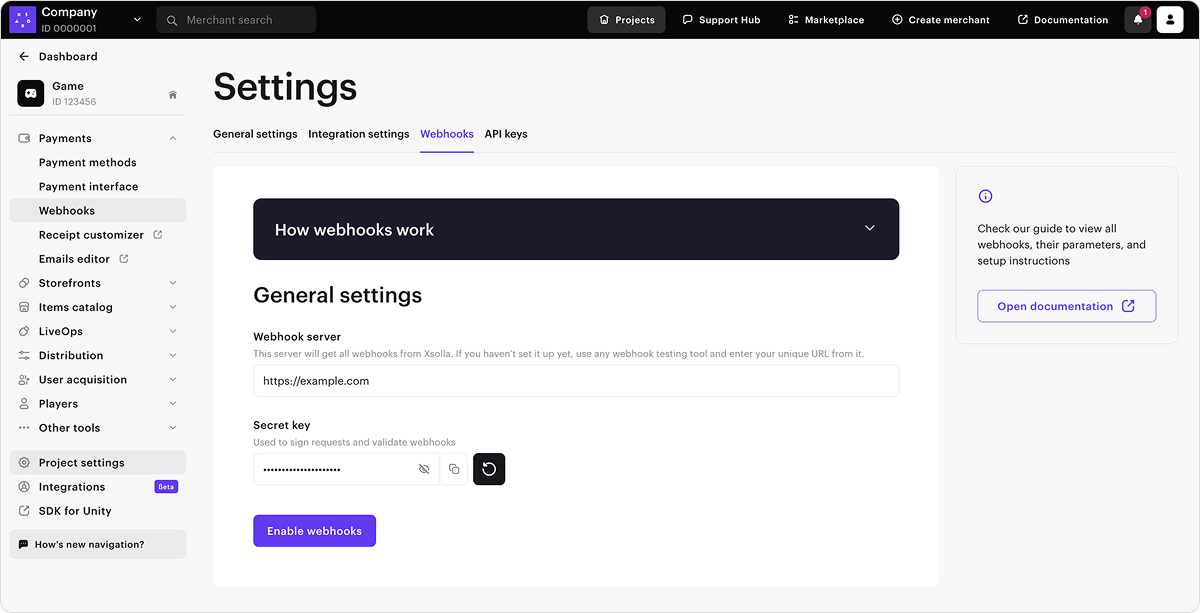
To enable receiving webhooks:
1. In the project in Publisher Account go to Project Settings > Webhooks section.
2. In the Webhook server field, specify the URL of your server where you want to receive webhooks in the `https://example.com` format. You can also specify the URL you find in a tool for testing webhooks.
Notice
To transfer data, HTTPS protocol is required; use of HTTP protocol is not supported.
3. A secret key to sign project webhooks is generated by default. If you want to generate a new secret key, click the refresh icon.
4. Click Enable webhooks.
Note
To test webhooks, you can select any dedicated website, such as webhook.site, or a platform, such as ngrok.
Notice
You can’t simultaneously send webhooks to different URLs. What you can do in Publisher Account is specify a URL for testing first, and then replace it with the real one.
To disable receiving webhooks:
1. In the project in Publisher Account go to Project Settings > Webhooks section.
2. Click Disable webhooks.
## Advanced settings
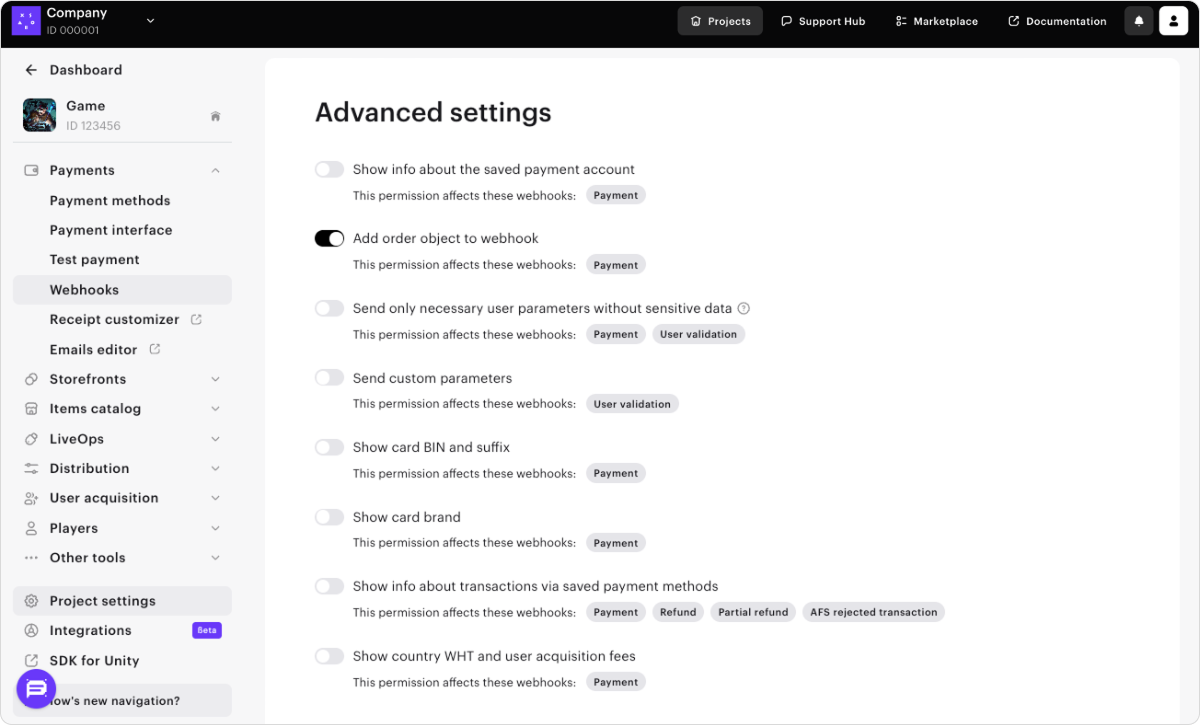
For the webhooks in the Payments and Store section, advanced settings are available.
They will automatically appear under the General settings block after you click the Get webhooks button.
Note
If the advanced settings are not displayed, make sure that webhook reception is connected in the general settings and you are on the Testing > Payments and Store tab.
In this section, you can set up the receipt of additional information in webhooks. To do this, set the corresponding switches to the active position. The line of each permission indicates the webhooks that will be affected by changing the settings.
| Toggle |
Description |
| Show info about the saved payment account |
Information about the saved payment method is passed in the payment_account custom object. |
| Show info about transactions via saved payment methods |
Information is passed in the following custom parameters of the webhook: saved_payment_method:0 — the saved payment method was not used1 — the payment method was saved when making the current payment2 — the previously saved payment method is used
payment_type:1 — one-time payment2 — recurring payment
|
| Add order object to webhook |
Information about the order is passed in the order object of the Payment webhook. |
| Send only necessary user parameters without sensitive data |
Only the following information about the user is passed in the webhook: |
| Send custom parameters |
Information about custom token parameters is passed in the webhook. |
| Show card BIN and suffix |
The following information about the bank card number is passed in the webhook: - the first 6 digits in the
card_bin parameter - the last 4 digits in the
card_suffix
|
| Show card brand |
The brand of the card used for making the payment. For example, Mastercard or Visa. |
# Test webhooks in Publisher Account
Testing webhooks helps to ensure the correct setup of the project both on your side and on Xsolla side.
If webhooks are set up successfully, a webhooks testing section is displayed below the webhooks setup section.
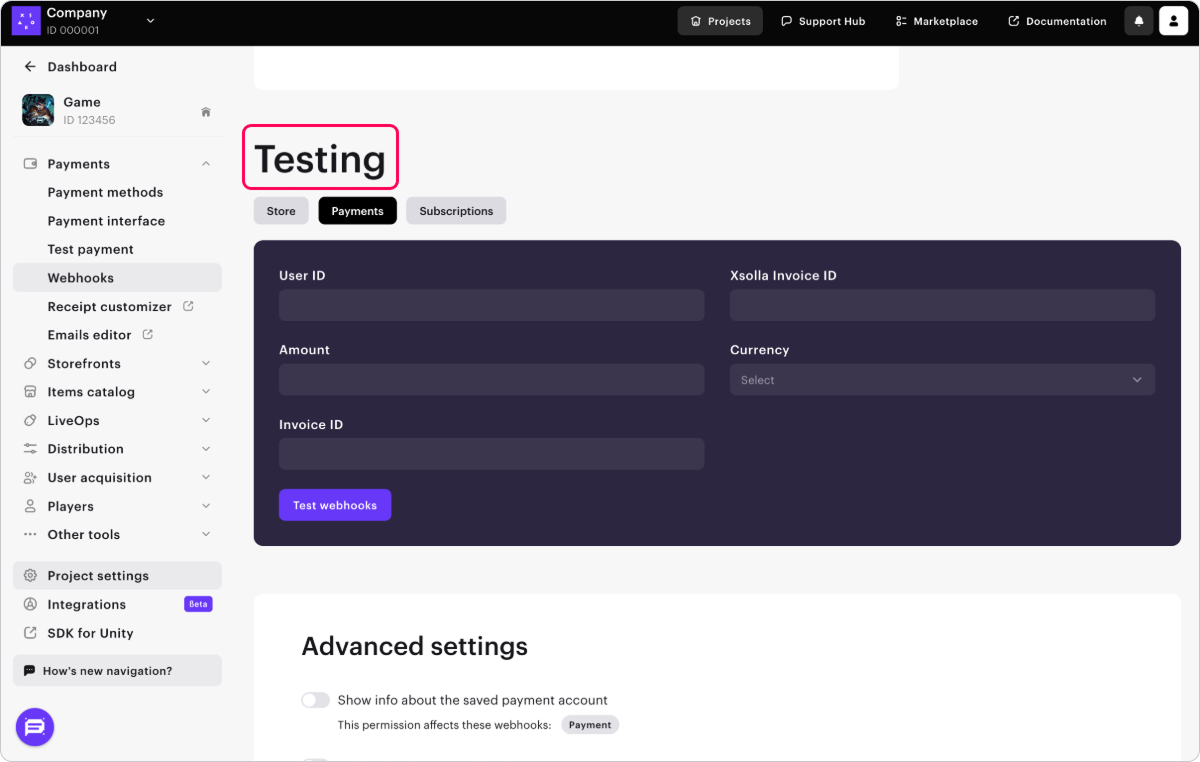
The testing section in the Publisher Account varies depending on the webhook receiving option.
If you receive combined webhooks:
If you receive separate webhooks:
Note
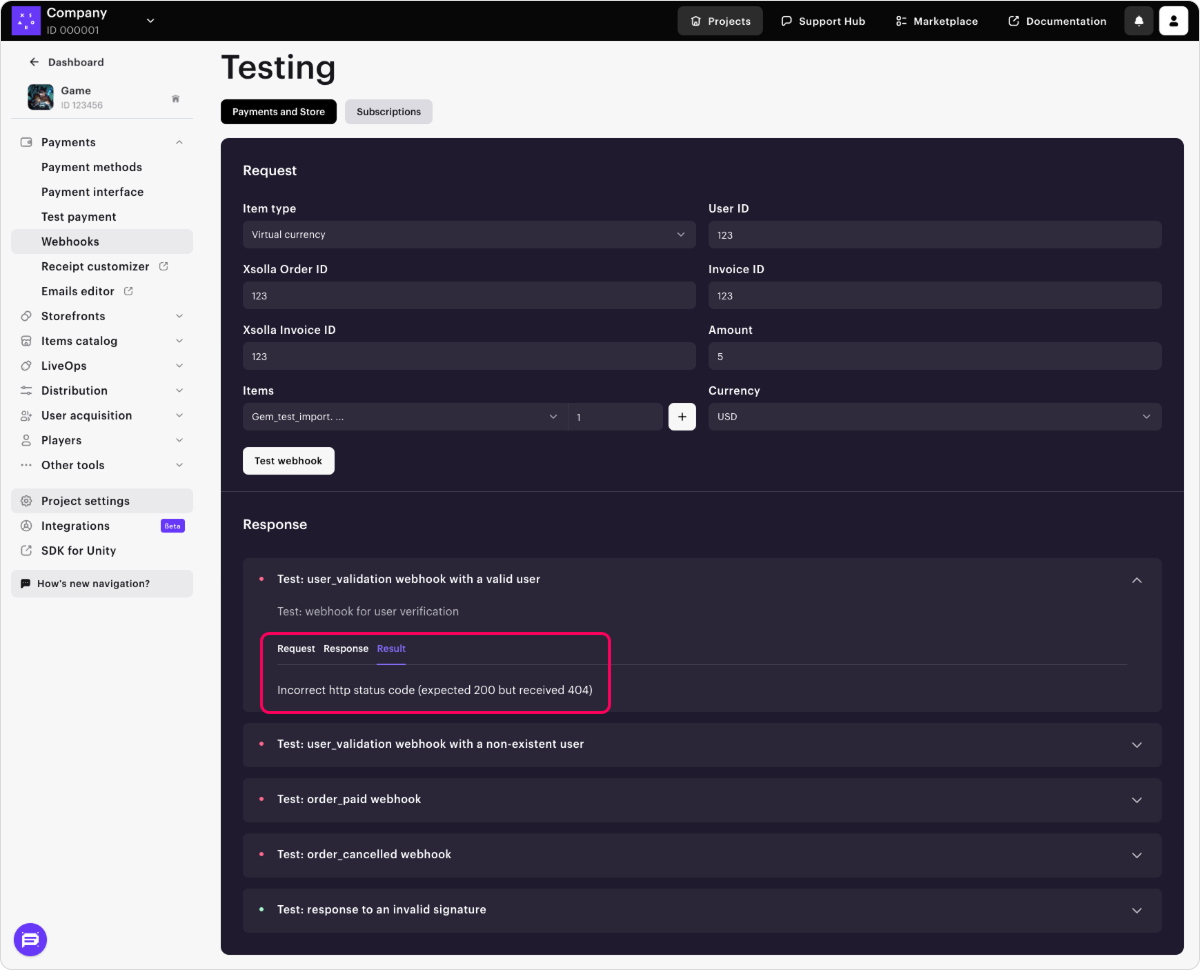
If a warning that the test has not passed appears in the testing section, check the webhook response settings in your webhook listener. The reasons for the errors in testing are indicated in the test results.
Example:
You use the specialized site webhook.site for testing.
An error is displayed in the Testing response to invalid signature section.
This happens because Xsolla sends a webhook with an incorrect signature and expects your handler to respond with a 4xx HTTP code specifying the INVALID_SIGNATURE error code.
webhook.site sends a 200 HTTP code in response to all webhooks, including a webhook with an incorrect signature. The expected 4xx HTTP code cannot be obtained, so an error is displayed in the test result.
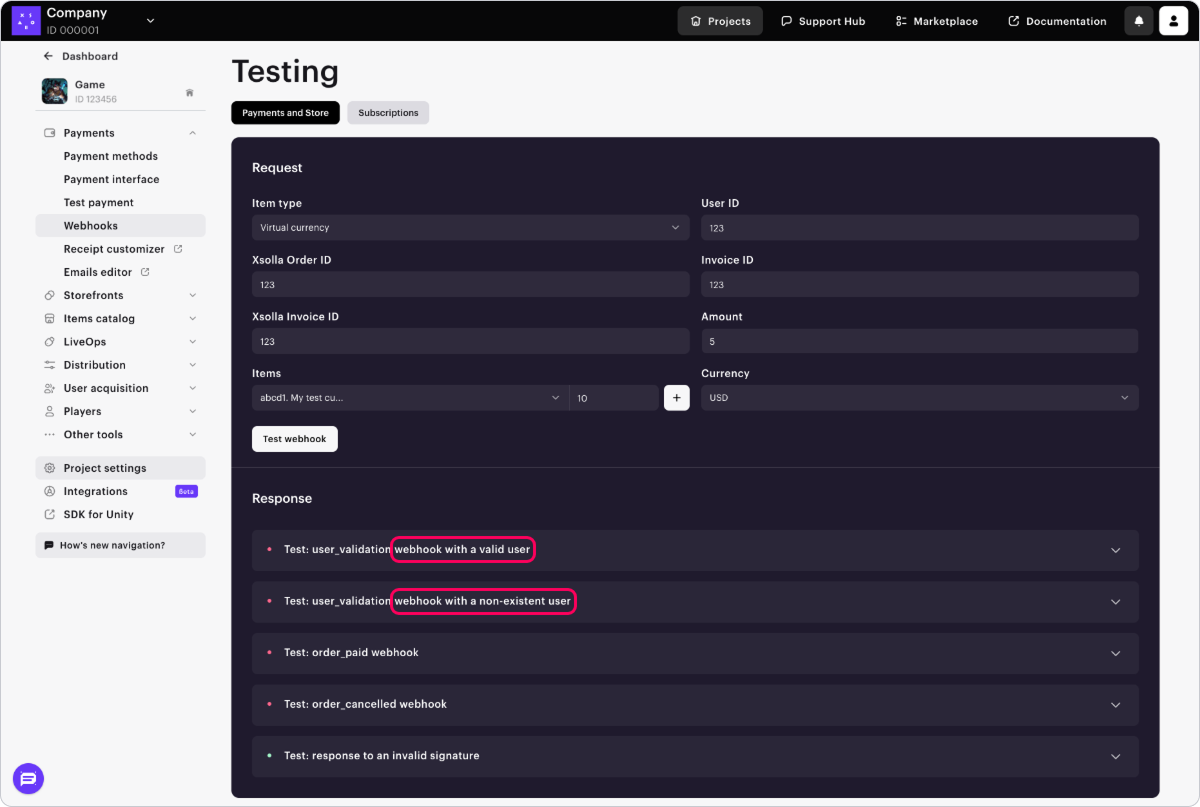
The process of testing for the scenario with combined webhooks is described below.
## Payments and Store
In the Payments and Store tab, you can test the following webhooks:
- User validation (`user_validation`)
- Successful payment for order (`order_paid`)
- Order cancellation (`order_canceled`)
To test:
1. In the webhooks testing section, go to the Payments and Store tab.
2. In the drop-down menu, select the type of item. If the item of selected type is not set up in Publisher Account, click:
* Connect – if the module with items of this type is not connected
* Configure – if you connected the module previously, but have not completed the setup
When you click the button, you will be redirected to the section of Publisher Account corresponding to the type of the selected item. After creating the item, return to the webhook testing section and proceed to the next step.
3. Fill in the necessary fields:
- Select the items’ SKU from the drop-down list and indicate the amount. You can choose multiple items of the same type by clicking + and adding them in a new line.
- User ID — when testing, you can use any combination of letters and digits.
- Public user ID — ID known to a user, e.g., an email or a nickname. This field is displayed if public user ID is enabled in your project in the Pay Station > Settings.
- Enter any value in the Xsolla Order ID field.
- Xsolla Invoice ID — transaction ID on Xsolla side. When testing, you can use any numeric value.
- Invoice ID — transaction ID on your game’s side. When testing, you can use any combination of letters and digits. It is not a required parameter for a successful payment, but you can pass it to link the transaction ID on your side to the transaction ID on Xsolla side.
- Amount — payment amount. When testing, you can use any numeric value.
- Currency — select a currency from the drop-down list.
4. Click Test webhooks.
User validation, Successful payment for order and Order cancellation webhooks with the specified data are sent to the provided URL. The results of testing each webhook type are displayed below the Test webhooks button.
If public user ID is enabled in your project, you will also see the results of a user search check.
For each webhook, you need to configure processing both scenarios: a successful one and the one with an error.
## Subscriptions
In the Subscriptions tab, you can test the following webhooks:
- User validation (`user_validation`)
- Payment (`payment`)
Note
In Publisher Account, you can only test basic User Validation and Payment webhooks. To test other webhook types, go to:
Note
To test webhooks, you should have at least one subscription plan created in the Publisher Account > Subscriptions > Subscription Plans section.
To test:
- In the testing section, go to the Subscriptions tab.
- Fill in the necessary fields:
- User ID — when testing, you can use any combination of letters and digits.
- Xsolla Invoice ID — transaction ID on Xsolla side. When testing, you can use any numeric value.
- Public user ID — ID known to a user, e.g., an email or a nickname. This field is displayed if public user ID is enabled in your project in the Pay Station > Settings > Additional settings section.
- Currency — select a currency from the drop-down list.
- Plan ID — a subscription plan. Choose a plan from the drop-down list.
- Subscription product — choose a product from the drop-down list (optional).
- Amount — payment amount. When testing, you can use any numeric value.
- Invoice ID — transaction ID on your game’s side. When testing, you can use any combination of letters and digits. It is not a required parameter for a successful payment, but you can pass it to link the transaction ID on your side to the transaction ID on Xsolla side.
- Trial period. To test the purchase of a subscription without a trial period or to test the renewal of a subscription, specify the value
0.
- Click Test webhooks.
In the specified URL, you will receive webhooks with filled in data. Testing results of each webhook, for both a successful scenario and a scenario with an error, are displayed under the Test webhooks button.
# Webhook listener
Webhook listener is program code that allows receiving incoming webhooks at a specified URL address, generating a signature, and sending a response to the Xsolla webhook server.
On the your application side, implement the reception of webhooks from the following IP addresses:
- `185.30.20.0/24`
- `185.30.21.0/24`
- `185.30.22.0/24`
- `185.30.23.0/24`
- `34.102.38.178`
- `34.94.43.207`
- `35.236.73.234`
- `34.94.69.44`
- `34.102.22.197`
If you integrated Login product, additionally add processing webhooks from the following IP addresses:
- `34.94.0.85`
- `34.94.14.95`
- `34.94.25.33`
- `34.94.115.185`
- `34.94.154.26`
- `34.94.173.132`
- `34.102.48.30`
- `35.235.99.248`
- `35.236.32.131`
- `35.236.35.100`
- `35.236.117.164`
Limitations:
- There should not be multiple successful transactions with the same ID in your application's database.
- If the webhook listener received a webhook with an ID that already exists in the database, you need to return the result of the previous processing of this transaction. It is not recommended to credit the user with a duplicate purchase and create duplicate records in the database.
## Generation of signature
To ensure secure data transmission, you must verify that the webhook was actually sent from the Xsolla server and hasn't been tampered with during transit. To do this, generate your own signature based on the request body payload and compare it with the signature provided in the `authorization` header of the incoming request. If the signatures match, the webhook is authentic and safe to process.
Verification steps:
1. Retrieve the signature from the `authorization` header of the incoming webhook request. The header format is `Signature `.
2. Retrieve the webhook request body in JSON format. Notice
Use the JSON payload exactly as received. Do not parse or re-encode the payload, as this will alter the formatting and cause signature verification to fail.
- Concatenate the JSON payload with your project's secret key by appending the key to the end of the string.
- Apply the SHA-1 cryptographic hash function to the resulting string. The result will be a lowercase hexadecimal string.
4. Compare your generated signature with the one from the `authorization` header. If they match, the webhook is authentic.
Below you can find signature generation implementation examples for the following languages: C#, C++, Go, PHP, and Node.js.
### Example of a webhook (HTTP):
```http
POST /your_uri HTTP/1.1
host: your.host
accept: application/json
content-type: application/json
content-length: 165
authorization: Signature 52eac2713985e212351610d008e7e14fae46f902
{
"notification_type":"user_validation",
"user":{
"ip":"127.0.0.1",
"phone":"18777976552",
"email":"email@example.com",
"id":1234567,
"name":"Xsolla User",
"country":"US"
}
}
```
### Example of a webhook (curl):
```bash
curl -v 'https://your.hostname/your/uri' \
-X POST \
-H 'authorization: Signature 52eac2713985e212351610d008e7e14fae46f902' \
-d '{
"notification_type":
"user_validation",
"user":
{
"ip": "127.0.0.1",
"phone": "18777976552",
"email": "email@example.com",
"id": 1234567,
"name": "Xsolla User",
"country": "US"
}
}'
```
### C# example of implementing signature generation (general sample):
Note
This code sample is compatible with .NET Framework 4.0 and later, as well as with .NET Core and other modern .NET versions. Signature verification uses constant-time comparison via the ConstantTimeEquals method to help prevent timing attacks.
```csharp
using System;
using System.Security.Cryptography;
using System.Text;
public static class XsollaWebhookSignature
{
public static string ComputeSha1(string jsonBody, string secretKey)
{
// Concatenation of the JSON from the request body and the project's secret key
string dataToSign = jsonBody + secretKey;
using (SHA1 sha1 = SHA1.Create())
{
byte[] hashBytes = sha1.ComputeHash(Encoding.UTF8.GetBytes(dataToSign));
// Convert hash bytes to lowercase hexadecimal string
var hexString = new StringBuilder(hashBytes.Length * 2);
foreach (byte b in hashBytes)
{
hexString.Append(b.ToString("x2"));
}
return hexString.ToString();
}
}
public static bool VerifySignature(string jsonBody, string secretKey, string receivedSignature)
{
string computedSignature = ComputeSha1(jsonBody, secretKey);
string receivedSignatureLower = receivedSignature.ToLower();
// Use constant-time comparison to prevent timing attacks
return ConstantTimeEquals(computedSignature, receivedSignatureLower);
}
private static bool ConstantTimeEquals(string a, string b)
{
if (a.Length != b.Length)
{
return false;
}
int result = 0;
for (int i = 0; i < a.Length; i++)
{
result |= a[i] ^ b[i];
}
return result == 0;
}
}
```
### C# example of implementing signature generation (.NET 5.0 and later):
Note
To use the Convert.ToHexString method, you need .NET 5.0 and later.
If you have .NET 7.0 and later, you can also use the
CryptographicOperations.FixedTimeEquals method instead of
ConstantTimeEquals.
```csharp
// For .NET 5.0 and later, you can use the more concise Convert.ToHexString method:
using System;
using System.Security.Cryptography;
using System.Text;
public static class XsollaWebhookSignature
{
public static string ComputeSha1(string jsonBody, string secretKey)
{
string dataToSign = jsonBody + secretKey;
using var sha1 = SHA1.Create();
byte[] hashBytes = sha1.ComputeHash(Encoding.UTF8.GetBytes(dataToSign));
return Convert.ToHexString(hashBytes).ToLower();
}
public static bool VerifySignature(string jsonBody, string secretKey, string receivedSignature)
{
string computedSignature = ComputeSha1(jsonBody, secretKey);
string receivedSignatureLower = receivedSignature.ToLower();
// Use constant-time comparison to prevent timing attacks
return ConstantTimeEquals(computedSignature, receivedSignatureLower);
}
private static bool ConstantTimeEquals(string a, string b)
{
if (a.Length != b.Length)
{
return false;
}
int result = 0;
for (int i = 0; i < a.Length; i++)
{
result |= a[i] ^ b[i];
}
return result == 0;
}
}
```
### C# example of implementing signature generation (.NET 7.0 and later):
Note
If you have .NET 7.0 and later, you can use the CryptographicOperations.FixedTimeEquals method.
```csharp
// For .NET 7.0+, you can use the built-in CryptographicOperations.FixedTimeEquals:
using System.Security.Cryptography;
public static bool VerifySignature(string jsonBody, string secretKey, string receivedSignature)
{
string computedSignature = ComputeSha1(jsonBody, secretKey);
byte[] computedBytes = Encoding.UTF8.GetBytes(computedSignature);
byte[] receivedBytes = Encoding.UTF8.GetBytes(receivedSignature.ToLower());
return CryptographicOperations.FixedTimeEquals(computedBytes, receivedBytes);
}
```
### C++ example of implementing signature generation:
```c++
#include
#include
#include
#include
class XsollaWebhookSignature {
public:
static std::string computeSha1(const std::string& jsonBody, const std::string& secretKey) {
// Concatenation of the JSON from the request body and the project's secret key
std::string dataToSign = jsonBody + secretKey;
unsigned char digest[SHA_DIGEST_LENGTH];
// Create SHA1 hash
SHA1(reinterpret_cast(dataToSign.c_str()),
dataToSign.length(), digest);
// Convert to lowercase hexadecimal string
std::ostringstream hexStream;
hexStream << std::hex << std::setfill('0');
for (int i = 0; i < SHA_DIGEST_LENGTH; ++i) {
hexStream << std::setw(2) << static_cast(digest[i]);
}
return hexStream.str();
}
static bool verifySignature(const std::string& jsonBody, const std::string& secretKey, const std::string& receivedSignature) {
std::string computedSignature = computeSha1(jsonBody, secretKey);
// Timing-safe comparison
if (computedSignature.length() != receivedSignature.length()) {
return false;
}
volatile unsigned char result = 0;
for (size_t i = 0; i < computedSignature.length(); ++i) {
result |= (computedSignature[i] ^ receivedSignature[i]);
}
return result == 0;
}
};
```
### Go example of implementing signature generation:
```go
package main
import (
"crypto/sha1"
"crypto/subtle"
"encoding/hex"
"strings"
)
type XsollaWebhookSignature struct{}
func (x *XsollaWebhookSignature) ComputeSha1(jsonBody, secretKey string) string {
// Concatenation of the JSON from the request body and the project's secret key
dataToSign := jsonBody + secretKey
// Create SHA1 hash
h := sha1.New()
h.Write([]byte(dataToSign))
signature := h.Sum(nil)
// Convert to lowercase hexadecimal string
return strings.ToLower(hex.EncodeToString(signature))
}
func (x *XsollaWebhookSignature) VerifySignature(jsonBody, secretKey, receivedSignature string) bool {
computedSignature := x.ComputeSha1(jsonBody, secretKey)
receivedSignatureLower := strings.ToLower(receivedSignature)
// Use constant time comparison to prevent timing attacks
return subtle.ConstantTimeCompare([]byte(computedSignature), []byte(receivedSignatureLower)) == 1
}
```
### PHP example of implementing signature generation:
```php
```
### Node.js example of implementing signature generation:
```js
const crypto = require('crypto');
class XsollaWebhookSignature {
// IMPORTANT: jsonBody must be the raw JSON string exactly as received from Xsolla
static computeSha1(jsonBody, secretKey) {
// Concatenation of the JSON from the request body and the project's secret key
const dataToSign = jsonBody + secretKey;
// Create SHA1 hash
const hash = crypto.createHash('sha1');
hash.update(dataToSign, 'utf8');
// Convert to lowercase hexadecimal string
return hash.digest('hex').toLowerCase();
}
static verifySignature(jsonBody, secretKey, receivedSignature) {
const computedSignature = this.computeSha1(jsonBody, secretKey);
const cleanReceivedSignature = receivedSignature.toLowerCase();
// Check if signatures have the same length before using timingSafeEqual
if (computedSignature.length !== cleanReceivedSignature.length) {
return false;
}
try {
return crypto.timingSafeEqual(
Buffer.from(computedSignature, 'hex'),
Buffer.from(cleanReceivedSignature, 'hex')
);
} catch (error) {
// Return false if there's any error (e.g., invalid hex characters)
return false;
}
}
}
```
## Sending responses to webhook
To confirm receipt of the webhook, your server must return:
* `200`, `201`, or `204` HTTP code in case of a successful response.
* `400` HTTP code with description of the problem if the specified user was not found or an invalid signature was passed.
Your webhook handler may also return a `5xx` HTTP code in case of temporary issues on your server.
If the Xsolla server did not receive a response to Successful payment for order and Order cancellation webhooks or received a response with a `5xx` code, the webhooks are resent according to the following schedule:
* 2 attempts with a 5-minute interval
* 7 attempts with a 15-minute interval
* 10 attempts with a 60-minute interval
Maximum of 20 attempts to send webhooks are made within 12 hours from the first attempt.
The retry logic for the Payment and Refund webhooks is described on the respective webhook page.
Notice
The payment will still be refunded to the user if all of the following conditions are met:
- The refund was initiated by Xsolla.
- In response to a webhook, a
4xx status code was returned, or no response was received after all retry attempts, or a 5xx status code was returned.
If the Xsolla server did not receive a response to the User validation webhook or received a response with a code of `400` or `5xx`, the User validation webhook is not resent.
In this case, the user sees an error and the Payment and Successful payment for order webhooks are not sent.
# Errors
Error codes for HTTP code 400:
| Code |
Message |
| INVALID_USER |
Invalid user |
| INVALID_PARAMETER |
Invalid parameter |
| INVALID_SIGNATURE |
Invalid signature |
| INCORRECT_AMOUNT |
Incorrect amount |
| INCORRECT_INVOICE |
Incorrect invoice |
```
HTTP/1.1 400 Bad Request
{
"error":{
"code":"INVALID_USER",
"message":"Invalid user"
}
}
```
# Webhooks list
Note
The notification type is sent in the notification_type parameter.
Version: 1.0
## Servers
```
https://api.xsolla.com/merchant/v2
```
## Download OpenAPI description
[Webhooks](https://developers.xsolla.com/_bundle/webhooks/index.yaml)
## User validation
### User validation
- [POST user-validation](https://developers.xsolla.com/webhooks/user-validation/user-validation.md): Xsolla sends a webhook with the user_validation type to the webhook URL to verify that a user is registered in the game. The request is sent multiple times as part of the payment process:
* when a user chooses a payment method in the payment UI
* when a user enters data in the payment form, e.g., bank card data or the ZIP code when paying via PayPal
* when a user clicks Pay now to proceed with payment
* when payment process is completed and the transaction status changes to done
The request is sent when paying with any payment methods.
When you save the webhook URL in Publisher Account, you can give permissions to receive detailed information in webhooks. To do that, set the necessary toggles to active in Publisher Account in the Project settings > Webhooks > Advanced settings section.
Note
If you registered in Publisher Account on or before January 22, 2025, you can find the toggles in the Project settings > Webhooks > Testing > Payments > Advanced settings section.
Toggle
Description
Send only necessary user parameters without sensitive data
Only the following information about the user is passed in the webhook:IDcountry
Send custom parameters
Information about custom token parameters is passed in the webhook.
### User search
- [POST user-search](https://developers.xsolla.com/webhooks/user-validation/user-search.md): Public User ID is a parameter that uniquely identifies the user and is known to them, unlike User ID (Public User ID can be email, screen name, etc). Xsolla sends a webhook with the user_search type when a purchase is made outside the game store (e.g., via cash kiosks).
### User validation in Web Shop
- [POST user-validation-in-webshop](https://developers.xsolla.com/webhooks/user-validation/user-validation-in-webshop.md): Xsolla sends a webhook from a Web Shop site to check if a user exists in the game. The webhook is sent from the following IP address: 34.102.38.178.
Note
Webhook is used only for user validation in Web Shop. Refer to these instructions for more information about configuring webhooks in Site Builder.
## Payments
### Payment
- [POST payment](https://developers.xsolla.com/webhooks/payments/payment.md): When a user completes a payment, Xsolla sends payment details in a webhook with the payment type to the webhook URL.
The expected response codes are described in the Responses section, but you can use other response codes as well:
Response code
Description
200, 201, 204
A successful response.
4xx
An error occurred. For example, if the specified user was not found or an invalid signature was passed.
5xx
A temporary server error. When this response is received, Xsolla will automatically retry sending the webhook, gradually increasing the interval between attempts until your listener confirms receiving. The maximum number of retries is 12 retry attempts over a 48-hour period.
When you save the webhook URL in Publisher Account, you can also set up receiving additional information in webhooks.
Note
If you registered in Publisher Account on or before January 22, 2025, you can find the toggles in your project in the Settings > Webhooks > Testing > Payments > Advanced settings section.
Toggle
Description
Show info about the saved payment account
Information about the saved payment method is passed in the payment_account custom object.
Show info about transactions via saved payment methods
Information is passed in the following custom parameters of the webhook:saved_payment_method:0 — the saved payment method was not used1 — the payment method was saved when making the current payment2 — the previously saved payment method is usedpayment_type:1 — one-time payment2 — recurring payment
Add order object to webhook
Information about the order is passed in the order object of the Payment webhook.
Send only necessary user parameters without sensitive data
Only the following information about the user is passed in the webhook:IDcountry
Show card BIN and suffix
The following information about the bank card number is passed in the webhook:the first 6 digits in the card_bin parameterthe last 4 digits in the card_suffix
Show card brand
The brand of the card used for making the payment. For example, Mastercard or Visa.
Notice
The set of fields sent in a webhook depends on:the advanced settings configured in Publisher Accountthe custom settings configured on the Xsolla sideIf you have any questions, contact your Customer Success Manager or email to csm@xsolla.com.
### Refund
- [POST refund](https://developers.xsolla.com/webhooks/payments/refund.md): When a payment is canceled, Xsolla sends details of the canceled transaction in a webhook with the refund type to the webhook URL.
The webhook retry mechanism depends on who initiated the refund:
* If the refund was initiated on your side, the webhook isn’t resent. The payment is refunded to the user regardless of the response to a webhook.
* If the refund was initiated by a third party — e.g., a payment system or Xsolla Customer Support team — and in response to a webhook, a 5xx status code was returned, the webhook is resent at increasing intervals. The maximum number of retries is 12 within 48 hours from the first attempt.
For detailed information about the refund process, refer to the instructions.
Notice
The payment will still be refunded to the user if all of the following conditions are met:The refund was initiated by Xsolla.In response to a webhook, a 4xx status code was returned, or no response was received after all retry attempts, or a 5xx status code was returned.
When you save the webhook URL in Publisher Account, you can also set up receiving additional information in webhooks.
Note
If you registered in Publisher Account on or before January 22, 2025, you can find the toggles in your project in the Settings > Webhooks > Testing > Payments > Advanced settings section.
Toggle
Description
Show info about transactions via saved payment methods
Information is passed in the following custom parameters of the webhook:saved_payment_method:0 — the saved payment method was not used1 — the payment method was saved when making the current payment2 — the previously saved payment method is usedpayment_type:1 — one-time payment2 — recurring payment
Refund codes:
Code
Reason
Description
1
Cancellation by the user request / the game request
Cancellation initiated from Publisher Account.
2
Chargeback
Transaction chargeback requested.
3
Integration error
Issues in integration between Xsolla and the game.Recommendation: Do not add the user to blocklist.
4
Potential fraud
Fraud suspected.Recommendation: Add the user to blocklist.
5
Test payment
Test transaction followed by cancellation.Recommendation: Do not add the user to blocklist.
6
User invoice expired
Invoice overdue (used for postpaid model).
7
Fraud notification from PS
Payment refused by payment system. Potential fraud detected by PS.Recommendation: Add the user to blocklist.
8
Cancellation by the PS request
Cancellation requested by payment system.Recommendation: Do not add the user to blocklist.
9
Cancellation by the user request
The user was not satisfied with the game or the purchase for any reason.Recommendation: Do not add the user to blocklist.
10
Cancellation by the game request
Cancellation requested by the game.Recommendation: Do not add the user to blocklist.
11
Account holder called to report fraud
The account owner states that they didn’t make the transaction.
12
Friendly fraud
Friendly fraud reported.
13
Duplicate
Duplicate transaction for the same invoice.
### Partial refund
- [POST partial-refund](https://developers.xsolla.com/webhooks/payments/partial-refund.md): When a partial refund is made, Xsolla sends details of the canceled transaction in a webhook with the partial_refund type to the webhook URL. Learn more about the partial refund process in these instructions.
When you save the webhook URL in Publisher Account, you can give permissions to receive detailed information in webhooks. To do that, set the following toggle to active in Publisher Account in the Project settings > Webhooks > Advanced settings section.
Note
If you registered in Publisher Account on or before January 22, 2025, you can find the toggles in the Project settings > Webhooks > Testing > Payments > Advanced settings section.
Toggle
Description
Show info about transactions via saved payment methods
Information is passed in the following custom parameters of the webhook:saved_payment_method:0 — the saved payment method was not used1 — the payment method was saved when making the current payment2 — the previously saved payment method is usedpayment_type:1 — one-time payment2 — recurring payment
Refund codes:
Code
Reason
Description
1
Cancellation by the user request / the game request
Cancellation initiated from Publisher Account.
3
Integration error
Issues in integration between Xsolla and the game.Recommendation: Do not add the user to blocklist.
5
Test payment
Test transaction followed by cancellation.Recommendation: Do not add the user to blocklist.
7
Fraud notification from PS
Payment refused by payment system. Potential fraud detected by PS.Recommendation: Add the user to blocklist.
9
Cancellation by the user request
The user was not satisfied with the game or the purchase for any reason.Recommendation: Do not add the user to blocklist.
10
Cancellation by the game request
Cancellation requested by the game.Recommendation: Do not add the user to blocklist.
### Declined payment
- [POST payment-declined](https://developers.xsolla.com/webhooks/payments/payment-declined.md): If a transaction is declined by a payment system, Xsolla sends the transaction details in a webhook of the ps_declined type to your configured webhook URL.
The webhook is sent during the authorization or payment processing stage.
In this case, the payment\ order_paid webhook is not sent.
Typical reasons for payment system declines:
* Card authorization failed (for example, the payment system could not complete the authorization process due to a technical error or no response from the bank) or was declined (for example, the bank responded but refused the transaction due to insufficient funds or invalid card details).
* 3-D Secure verification failed, was not completed, or the user confirmation timed out.
* The processor or acquiring bank is temporarily unavailable or returns a hard decline due to an irreversible error, such as a closed account or an invalid card number. Retrying without addressing the underlying issue will not result in a successful transaction.
Should not be confused with:
* Anti-fraud rejections, which are reported via the afs_reject webhook.
* Refunds and partial refunds after a successful payment, which are reported via the refund and partial_refund webhooks.
Note
To receive the ps_declined webhook, contact your Customer Success Manager or email csm@xsolla.com.
### Add payment account
- [POST add-payment-account](https://developers.xsolla.com/webhooks/payments/add-payment-account.md): Xsolla sends a webhook with the payment_account_add type to the webhook URL whenever a user adds a payment account or saves a payment account when purchasing something inside the game. To receive this webhook, contact your Customer Success Manager or email csm@xsolla.com.
### Remove payment account
- [POST remove-payment-account](https://developers.xsolla.com/webhooks/payments/remove-payment-account.md): When a user removes the payment account from saved accounts, Xsolla sends a webhook with the payment_account_remove type to the webhook URL. To receive this webhook, contact your Customer Success Manager or email csm@xsolla.com.
## Combined webhooks
### Successful payment for order (with payment and transaction details)
- [POST successful-order-payment](https://developers.xsolla.com/webhooks/combined-webhooks/successful-order-payment.md): Xsolla sends the order_paid webhook to the specified URL when the user successfully pays for the order.
The order_paid webhook contains information about the purchased items, payment data and transaction details.
The order_paid webhook is not sent if the payment is not successful, for example:
* the payment form was opened, but the user did not pay for the order
* the payment form was opened, but there were errors during the payment
It is recommended that the processing time of the order_paid webhook is less than 3 seconds.
Notice
The set of fields sent in a webhook depends on the following settings:the ones you configured in Publisher Account in the Project settings > Webhooks > Advanced settings sectionthe ones configured on the Xsolla sideIf you have any questions, contact your Customer Success Manager or email to csm@xsolla.com.
The expected answers are described in the Responses section.
You can use other response codes. Depending on the response code and the connection of the automatic payment refund functionality, the webhook processing logic on Xsolla’s side is as follows:
Response code
Automatic payment refund is disabled (by default)
Automatic payment refund is enabled
400, 401, 402, 403, 404, 409, 422, 415
No actions
Automatic refund to the user
200, 201, 204
No actions
No actions
Different code or no response to webhook
Multiple webhooks are sent within a specified time interval: 2 attempts with a 5-minute interval, 7 attempts with a 15-minute interval, 10 attempts with a 60-minute interval.
Multiple webhooks are sent within a specified time interval: 2 attempts with a 5-minute interval, 7 attempts with a 15-minute interval, 10 attempts with a 60-minute interval. If all webhooks are sent but a successful response is not received, an automatic refund is issued to the user.
To connect the automatic refund functionality, contact your Customer Success Managers or email to csm@xsolla.com.
### Order cancellation (with payment and transaction details)
- [POST order-cancellation](https://developers.xsolla.com/webhooks/combined-webhooks/order-cancellation.md): Xsolla sends the order_canceled webhook to the specified URL when the payment is canceled by the user, partner, or automatically. The webhook contains information about returned items, payment data and details of the canceled order.
The webhook is not sent if the payment is not successful, for example:
* the payment UI was opened but the user did not pay for the order
* the payment UI was opened but there were errors during the payment
The recommended webhook processing time is within 3 seconds.
## Separate webhooks
### Successful payment for order (without payment and transaction details)
- [POST successful-order-payment-separate](https://developers.xsolla.com/webhooks/separate-webhooks/successful-order-payment-separate.md): Xsolla sends the order_paid webhook to the specified URL when the following conditions are fulfilled:
1. The user successfully paid for the order.
2. Xsolla received a response about the successful processing of payment webhook.
The order_paid webhook contains information about the purchased items and transaction details.
The order_paid webhook is not sent if:
* The payment was not successful, for example:
* the payment form was opened, but the user did not pay for the order
* the payment form was opened, but there were errors during the payment
* The response about the successful processing of the payment webhook has not been received.
It is recommended that the processing time of the order_paid webhook is less than 3 seconds.
The expected answers are described in the Responses section.
You can use other response codes. Depending on the response code and the connection of the automatic payment refund functionality, the webhook processing logic on Xsolla’s side is as follows:
Response code
Automatic payment refund is disabled (by default)
Automatic payment refund is enabled
400, 401, 402, 403, 404, 409, 422, 415
No actions
Automatic refund to the user
200, 201, 204
No actions
No actions
Different code or no response to webhook
Multiple webhooks are sent within a specified time interval: 2 attempts with a 5-minute interval, 7 attempts with a 15-minute interval, 10 attempts with a 60-minute interval.
Multiple webhooks are sent within a specified time interval: 2 attempts with a 5-minute interval, 7 attempts with a 15-minute interval, 10 attempts with a 60-minute interval. If all webhooks are sent but a successful response is not received, an automatic refund is issued to the user.
To connect the automatic refund functionality, contact your Customer Success Managers or email to csm@xsolla.com.
### Order cancellation (without payment and transaction details)
- [POST order-cancellation-separate](https://developers.xsolla.com/webhooks/separate-webhooks/order-cancellation-separate.md): Xsolla sends the order_canceled webhook to the specified URL when the payment was canceled by the user, partner, or automatically. The webhook contains information about returned items and details of the canceled order.
The webhook is not sent if the payment was not successful, for example:
* the payment UI was opened but the user did not pay for the order
* the payment UI was opened but there were errors during the payment
The recommended webhook processing time is within 3 seconds.
## Personalization webhook
### Catalog personalization on partner side
- [POST personalized-partner-catalog](https://developers.xsolla.com/webhooks/personalization/personalized-partner-catalog.md): Xsolla will send a partner_side_catalog webhook that contains the user and project parameters to the webhook URL when a user interacts with the store.
Return a list of item_id or item SKU that are available to the user in response. In this case, you can also include information that a particular user can buy a certain product a specified number of times. This feature allows you to control the number and type of products that the user can add to the cart and buy.
It is recommended that the processing time of the partner_side_catalog webhook is less than 3 seconds.
## Anti-fraud
### Anti-fraud system rejected transaction
- [POST afs-rejected-transaction](https://developers.xsolla.com/webhooks/anti-fraud/afs-rejected-transaction.md): When a transaction is declined during an Anti-fraud system check, Xsolla sends transaction details in the webhook with the afs_reject type to the webhook URL. To receive this webhook, contact your Customer Success Manager or email csm@xsolla.com.
When you save the webhook URL in Publisher Account, you can give permissions to receive detailed information in webhooks. To do that, set the following toggle to active in Publisher Account in the Project settings > Webhooks > Advanced settings section.
Note
If you registered in Publisher Account on or before January 22, 2025, you can find the toggles in the Project settings > Webhooks > Testing > Payments > Advanced settings section.
Toggle
Description
Show info about transactions via saved payment methods
Information is passed in the following custom parameters of the webhook:saved_payment_method:0 — the saved payment method was not used1 — the payment method was saved when making the current payment2 — the previously saved payment method is usedpayment_type:1 — one-time payment2 — recurring payment
### Anti-fraud blocklist update
- [POST afs-rejected-blocklist](https://developers.xsolla.com/webhooks/anti-fraud/afs-rejected-blocklist.md): When the Anti-fraud system blocklist is updated (add or remove a parameter), Xsolla sends a webhook with the afs_black_list type to the webhook URL. The parameter addition is performed automatically on the Xsolla side or on request. Parameter removal is possible only on request. To receive this webhook, contact your Customer Success Manager or email csm@xsolla.com.
### Dispute
- [POST dispute](https://developers.xsolla.com/webhooks/anti-fraud/dispute.md): When a new dispute is opened or a dispute changes its status, Xsolla sends a webhook with the dispute type to the webhook URL. To receive this webhook, contact your Customer Success Manager or email csm@xsolla.com.
## Subscriptions
### Created subscription
- [POST created-subscription](https://developers.xsolla.com/webhooks/subscriptions/created-subscription.md): When a user creates a subscription, Xsolla sends a webhook with the create_subscription type to the webhook URL.
### Updated subscription
- [POST updated-subscription](https://developers.xsolla.com/webhooks/subscriptions/updated-subscription.md): If some parameters in the subscription (plan_id, date_next_charge) were changed, and in the case of every subscription renewal, Xsolla sends a webhook with the update_subscription type to the webhook URL.
### Canceled subscription
- [POST canceled-subscription](https://developers.xsolla.com/webhooks/subscriptions/canceled-subscription.md): When a subscription is canceled, Xsolla sends a webhook with the cancel_subscription type to the webhook URL.
### Nonrenewing subscription
- [POST nonrenewing-subscription](https://developers.xsolla.com/webhooks/subscriptions/nonrenewing-subscription.md): When a subscription status is set to nonrenewing, Xsolla sends a webhook with the non_renewal_subscription type to the webhook URL. To receive this webhook, contact your Customer Success Manager or email csm@xsolla.com.